How to play PianoGlow with a real keyboard
A digital piano works with PianoGlow when the computer can see it as MIDI. The developer’s test page says USB-B is the usual port, then 5-pin MIDI, USB-C, and micro-USB. Bluetooth MIDI is supported too, and on Windows it arrived in a later update. Start with the cable.
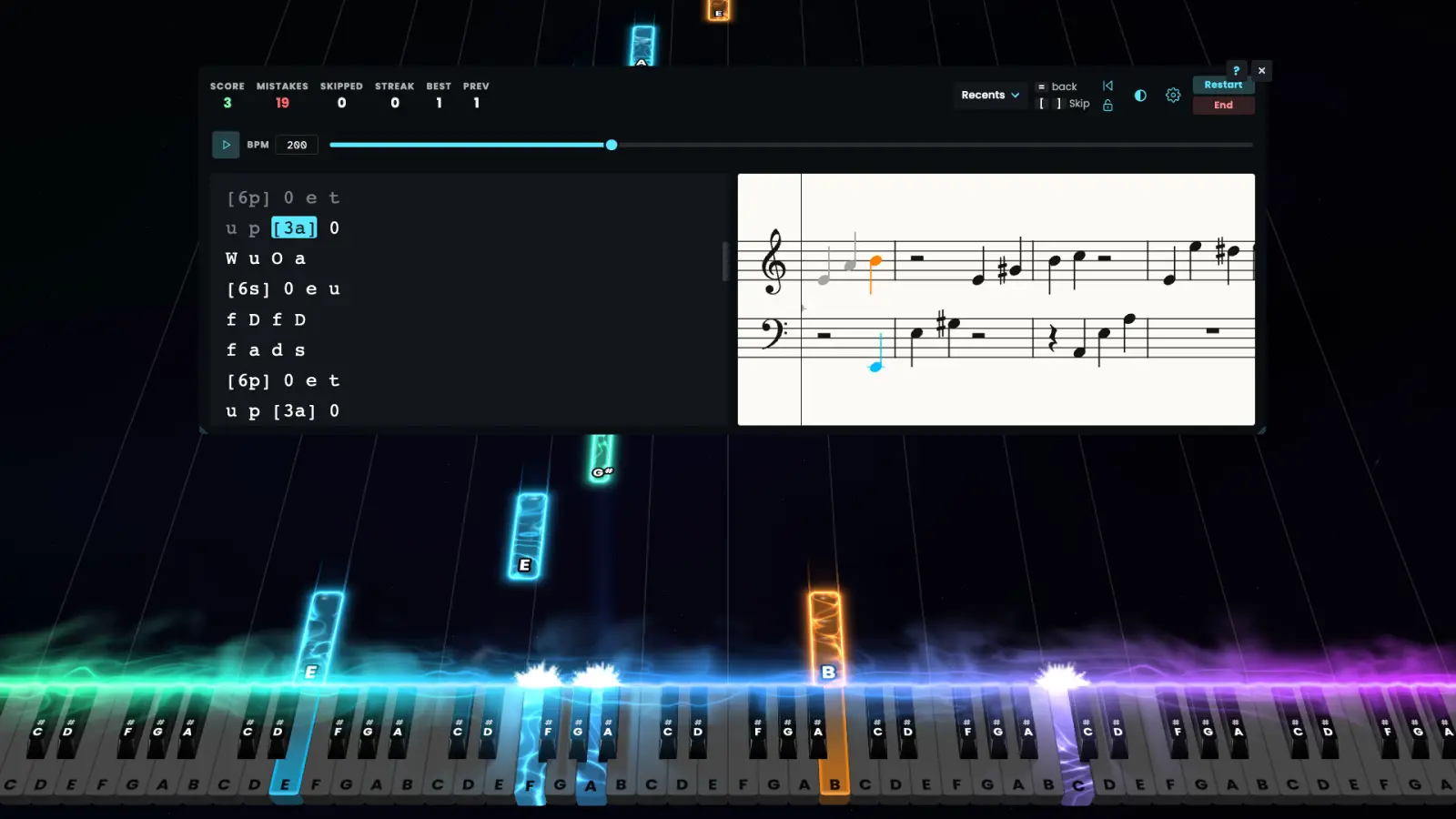
Three steps before you open the game
Look on the back of the piano for a port labeled USB To Host or MIDI Out. USB To Host is the square-ish printer plug on many Roland, Yamaha, and Kawai boards. MIDI Out is the round 5-pin socket and needs a USB MIDI adapter. The developer’s own example of a search, when the printing is unclear, is the Roland FP-30X. Twenty-five keys are enough to start. A pinned Steam thread says the game adapts. An 88-key used board is what that same thread recommends if you are buying.
- Connect USB-B, a 5-pin adapter, USB-C, or Bluetooth MIDI. Prefer USB-B if the piano has it.
- Open the developer MIDI test and allow MIDI when the browser asks. Press a key. You want a note name, a velocity, and a channel.
- If those three appear, open PianoGlow and choose the device under Settings, then MIDI. If they do not, change the cable or the port before you blame the game.
Which plug is which
The order below is the order the MIDI test page prints, not a ranking I made up. The Steam store description agrees that USB-B and Bluetooth are both real paths.
| Port | Cable | Status |
|---|---|---|
| USB-B (USB To Host) | Printer-style USB | Developer test · preferred |
| MIDI 5-pin (MIDI Out) | USB MIDI adapter | Developer test · 1 source |
| USB-C | USB-C data cable | Developer test · 1 source |
| micro-USB | Data cable, not charge-only | Developer test · 1 source |
| Bluetooth MIDI | No cable; Windows support called out 25 Aug 2026 | Developer · 1 source, 2 pages |
Light-up keys, acoustic pianos, and latency
The developer lights compatible keys by sending a silent MIDI message with velocity 0. A pinned thread lists TheOne, the Casiotone LK-S250, Roli, and PartyKeys from Popumusic as boards players got to light. The same thread says the developer does not promise every model. Treat that list as community confirmation, one thread, not a catalog.
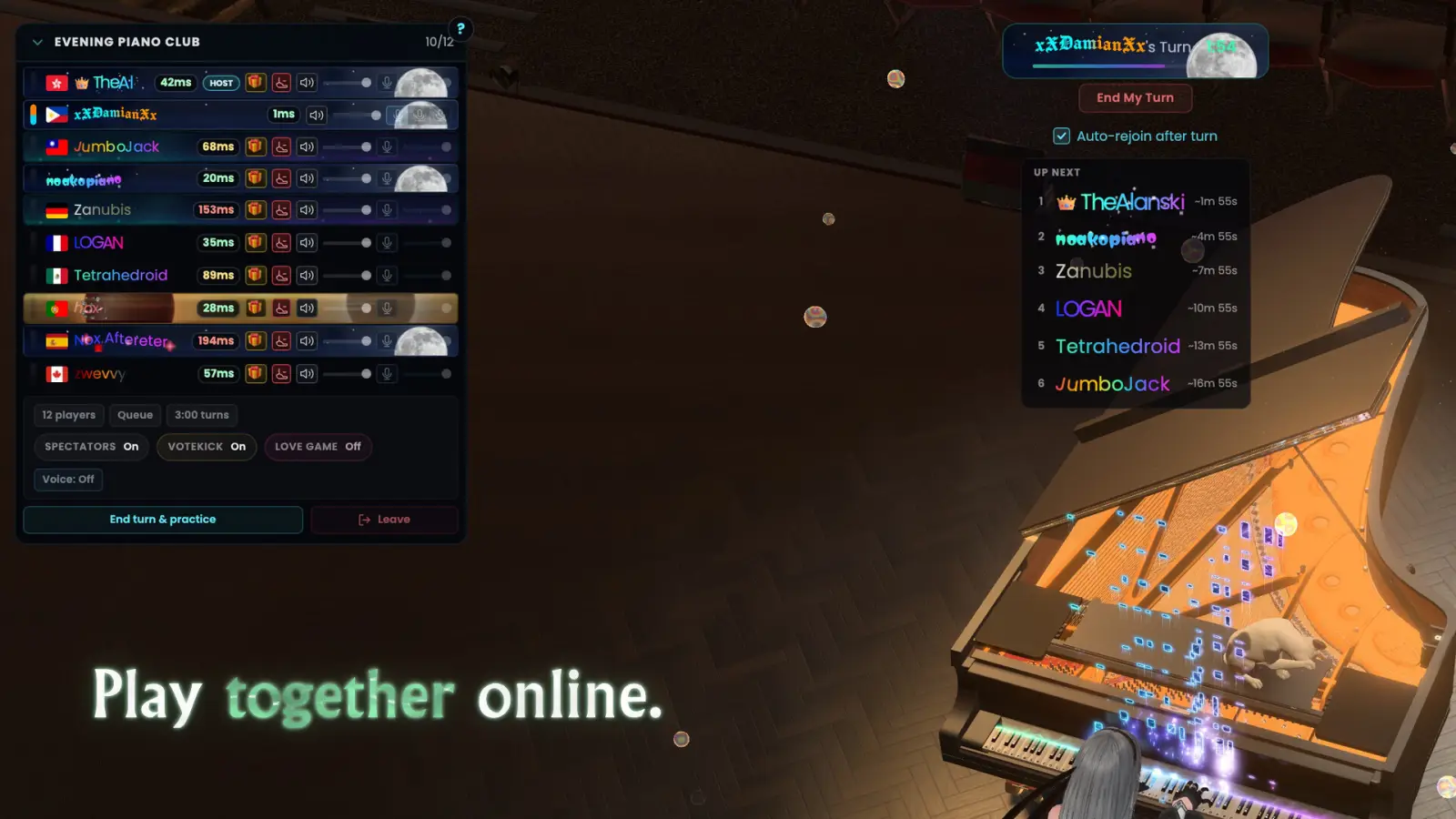
An acoustic piano can be aimed at a microphone. The path is Settings, then MIDI, then Microphone to MIDI. The test page calls that less accurate and slower, and says it is not the recommended way. There is no millisecond figure for latency anywhere I read. Windows has an ASIO option, marked beta, for output delay. Same-network multiplayer can share an IP in Steam’s settings; a 9 Nov 2026 post calls that almost no latency between those computers. “Almost” is their word. I am not converting it into a number.
Related guides
Questions
How can I play Piano Glow with a real keyboard?
Use USB To Host or MIDI Out, confirm notes on the developer MIDI test, then select the device in the game. Bluetooth MIDI is the cable-free option.
Will any digital piano work?
The test page says 99.9 percent of MIDI keyboards and non-toy digital pianos work. That is the developer’s figure, one source. There is no model-by-model database.
Sources
- Developer FAQ — checked 2026-11-09
- MIDI test — checked 2026-11-09
- Steam store page — checked 2026-11-09
- Steam thread: piano compatibility — checked 2026-11-09
- Steam thread: light-up keys — checked 2026-11-09